Use NextSona as a Chrome audio extension for pitch shifting, EQ, AI Vocal karaoke, effects and video sync while you listen to music or watch video in your browser.
Updated September 23, 2026·NextFeeder Labs
The extension is ready. Pin it to your Chrome toolbar, open a media tab and turn AUDIO on when you want NextSona to process the current tab.
These three steps are enough to get started. The controls stay in the extension popup, so the page you are listening to does not need another player.
STEP 1
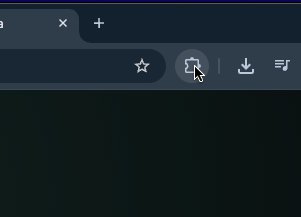
Open Chrome's Extensions menu.
In Chrome, click the puzzle-shaped Extensions icon in the browser toolbar. This is where Chrome lists the extensions installed in your browser.
Open the Extensions menu to find NextSona.
STEP 2
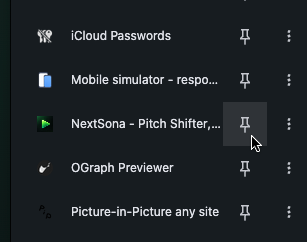
Pin NextSona to the toolbar.
Find NextSona in the list and click the pin icon. The NextSona logo will stay visible beside the address bar, so you can open the controls without searching through the menu again.
Pin NextSona so the audio controls are one click away.
STEP 3
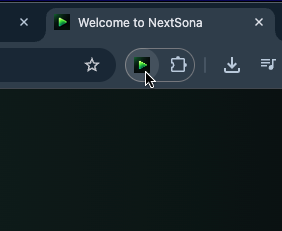
Open NextSona and turn audio on.
Open a music or video page, click the NextSona icon and switch AUDIO to ON. You can then adjust pitch, EQ, reverb, dynamics and other controls from the popup.
Open the popup and start shaping the audio in the current tab.
WHAT'S NEXT
Try the controls at your own pace.
01
Change the key
Use Pitch to move a song higher or lower while keeping the current browser playback.
02
Try AI Vocal
Choose Karaoke or Acapella when you need vocal separation. The model loads only after AI Vocal is enabled.
03
Keep an eye on performance
AI processing depends on your browser, driver and GPU. If startup is slow, see the Chrome GPU guide.
Small noteNextSona changes processed playback for the current session. It does not modify the original media source.